AutoChase documentation
Automate SLA tracking, reminders, escalations, and capacity planning for Jira Cloud teams.
Getting started
Install AutoChase, connect your Jira projects, define SLAs, and configure team capacity alongside your escalation structure.
- Install AutoChase from the Atlassian Marketplace.
- Open Jira → Apps → AutoChase (or Manage apps → AutoChase).
- Add Projects from Jira and assign default SLAs and teams.
- Create SLA rules with response/resolution times, reminders, leadership visibility, and working hours.
- Open Capacity, configure demand settings and scope, then refresh the capacity report.
- For department/team analytics and manager-chain escalations, configure Departments, Teams, and Escalation hierarchy.
Navigation order in the app: Dashboard · Tracked issues · SLA analytics · Reports · Capacity · Projects · SLA rules · Teams · Departments · Escalation hierarchy
Dashboard
High-level SLA health across your tracked projects and issues.
KPI cards
Issues needing attention
Open issues sorted by urgency. Columns include Issue, Assignee, SLA, Mode, SLA progress, Status, Acknowledgment, and Escalation level.
Top breached projects
Up to five projects with the most breaches. Use View to jump to tracked issues for that project.
Tracked issues
Live monitoring with reminders, escalation, and SLA assignment controls.
Filters
Filter by status: All, On track, At risk, Breached, Resolved. You can also filter by SLA tracking on/off.
Table
Columns include Track (on/off), Issue, Assignee, SLA, Mode, Priority, SLA progress, Status, Acknowledgment, and Escalation. Uncheck Track to pause SLA enforcement on an issue, or click an SLA name to reassign policy.
If empty, add a project under Projects and create or sync issues in Jira.
SLA analytics
Department and SLA rollups with a filterable issue list and CSV export.
Filters
- Department, Team, Project, SLA, Status
- Export CSV for the current filter context
Summary rollups
Switch between By department & team and By SLA. Click a row to filter the issue list below. Status counts and % met apply to resolved tickets in the filtered set.
Issue list
Columns: Issue, Org (department/team), Project, Priority, SLA, Status, Escalation, Acknowledgment.
Reports
Shareable SLA summaries for teams and leadership, with integrated capacity insights.
Report types
| Type | Contents |
|---|---|
| Team SLA health | SLA metrics for a selected team or all teams |
| Leadership digest | Executive summary with SLA health and capacity snapshot |
| Full report | Complete SLA and capacity view for leadership reviews |
Options
- Filter by team and optional date range
- Include SLA section and capacity section (Leadership and Full reports)
- Generate report, then copy for Confluence, export JSON/CSV, or Print / PDF
Date range filters SLA tickets (resolved in window, or still open and created before end date). Capacity shows current workload at generation time.
Capacity planning
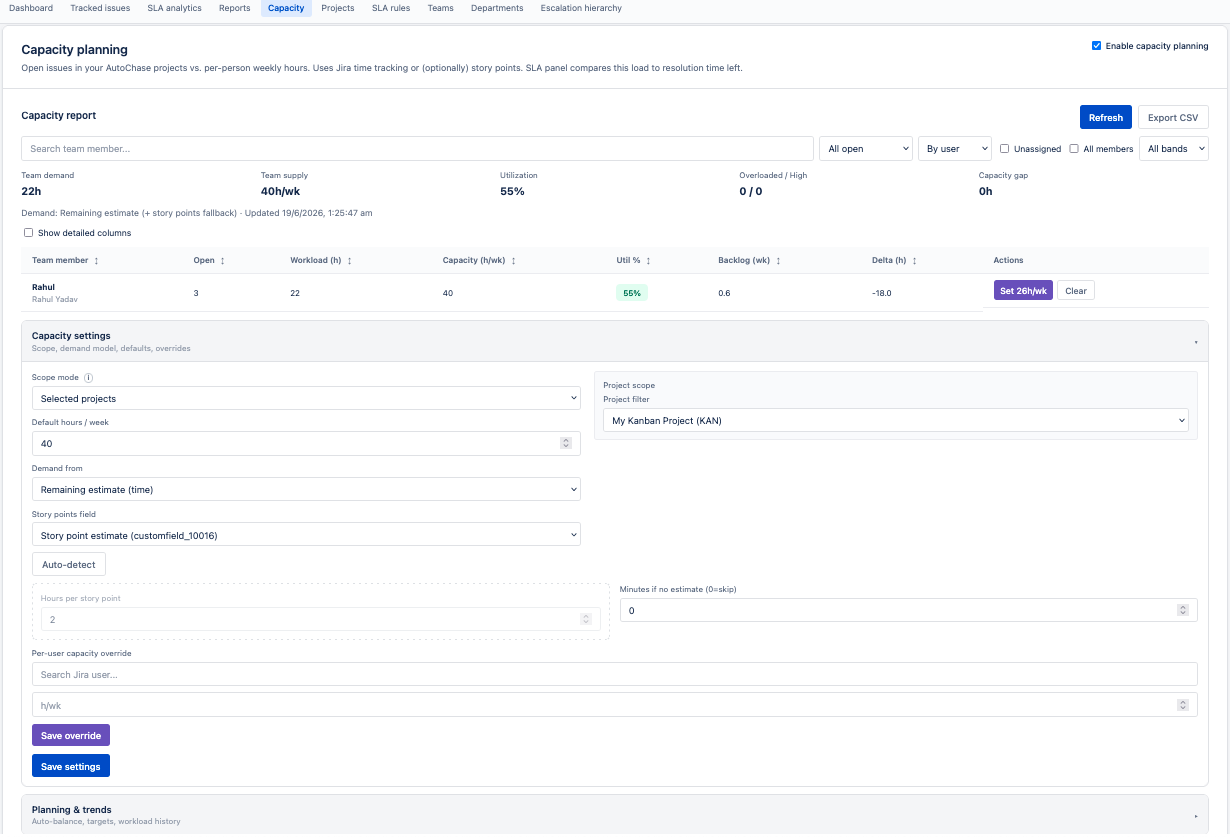
See open Jira work against each person’s weekly capacity. AutoChase combines SLA deadlines with workload so you can spot overload before breach.
What capacity planning shows
- Workload (h) — open demand from assigned issues
- Capacity (h/wk) — available hours per week (default or per-user override)
- Utilization % — workload ÷ capacity
- Backlog (wk) — how many weeks of work at current capacity
- Delta (h) — hours needed above available capacity
- Bands — OK (<85%), High (85–100%), Overload (>100%)
Capacity report (main view)
The report appears at the top of the Capacity tab. Use the toolbar to:
- Search by team member or project
- Group By user or By project
- Filter by time window: All open, Sprint, Updated this month/year
- Filter by utilization band; include unassigned pool
- Refresh and Export CSV
Per overloaded user, use Set Xh/wk to apply a recommended weekly hours override based on your target utilization.
Settings (collapsible section)
| Setting | Description |
|---|---|
| Enable capacity planning | Master switch for capacity reporting and issue-panel workload. Save settings after changing. |
| Scope mode | Selected projects (AutoChase project list) or Kanban/Scrum board |
| Default hours / week | Baseline capacity per person (e.g. 40) |
| Demand from | Remaining estimate, Original estimate, or Story points |
| Story points field | Jira custom field for story points; use Auto-detect to find it |
| Hours per story point | Converts story points to hours for workload (org-wide admin setting) |
| All project members | Include full project roster, not only assignees with open tickets |
| Per-user override | Set custom hours/week for a specific Jira user |
Planning & trends (collapsible section)
- Set Target util % and run Auto-balance overload for overloaded assignees
- View capacity trend by day, week, or month (last 30–365 days)
- Export trend data to CSV
How demand is calculated
AutoChase sums open issue demand per assignee:
- Uses Remaining estimate (or Original estimate / Story points per your setting)
- If time estimate is missing, falls back to story points × hours/point when configured
- Unassigned issues can appear in a separate unassigned pool
Capacity on the issue panel
When capacity planning is enabled, the issue side panel shows assignee workload vs. SLA resolution time remaining. This helps identify capacity at risk — when backlog exceeds time left before SLA breach.
Projects
Choose which Jira projects AutoChase tracks. Projects define SLA scope and capacity scope.
Sync and add
- Sync projects — pull project metadata from Jira
- Sync issues — pull issues into AutoChase tracking
- Load projects — populate dropdown from Jira
- Owner email (required) — used for escalation when tickets are unassigned
Project actions
Edit, Assign SLA, Assign team, or Remove. Default SLA applies to new issues (subject to matching rules). Team links support org analytics and structure.
Use the Capacity tab for workload planning; use Reports for shareable SLA + capacity summaries.
SLA rules
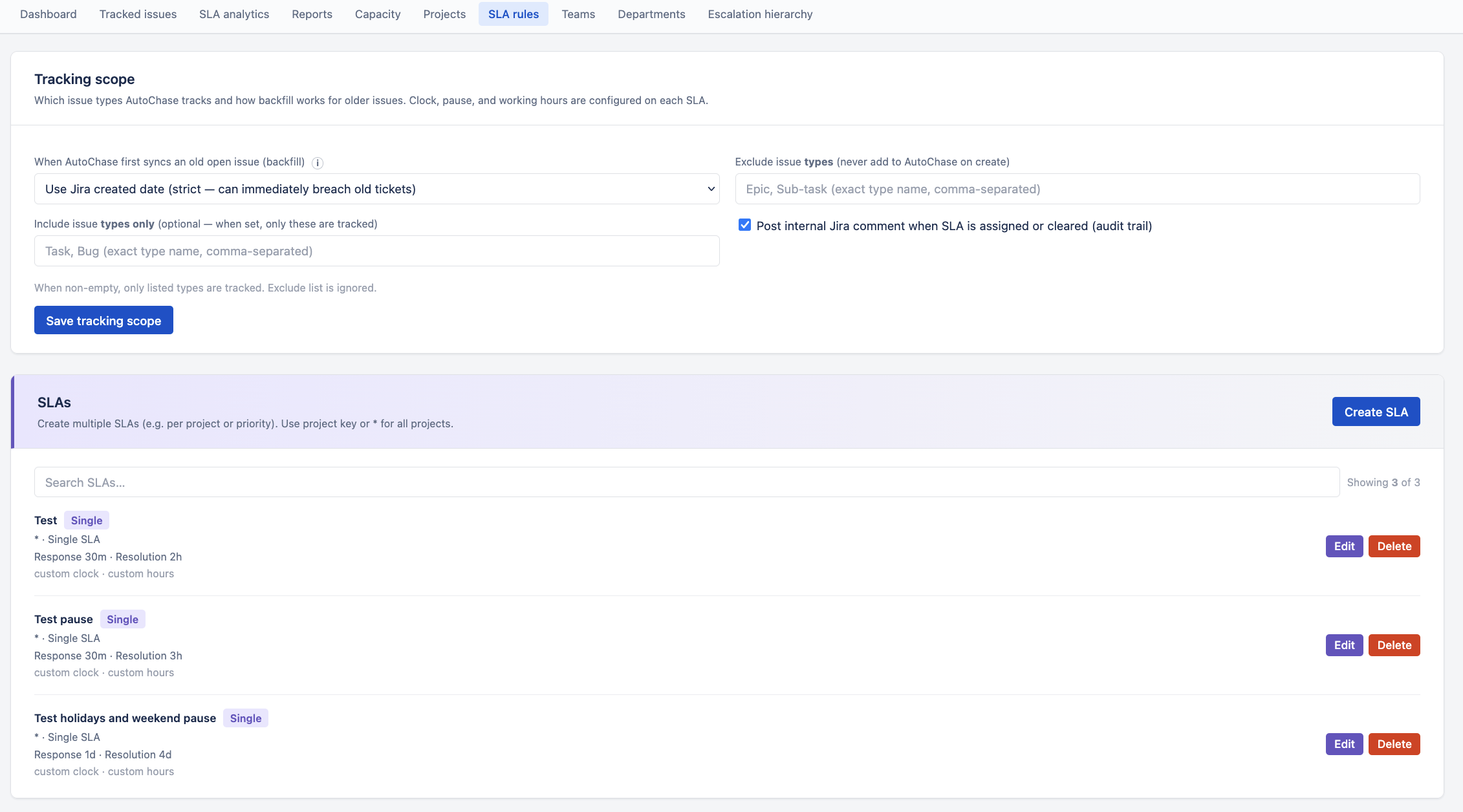
Define response and resolution targets, reminders, leadership visibility, SLA clock behavior, and working hours.
SLA modes
- Single SLA — same response/resolution for all priorities
- Priority-based SLA (P1–P5) — different targets per priority
Five-step wizard
- SLA Timing — name, times, warning threshold, scope, SLA clock, working hours
- Acknowledgment reminders — up to 3 percentages of response time
- Progress reminders — up to 3 percentages of resolution time
- Leadership visibility levels — manager-chain thresholds
- Review & submit
Key fields
| Field | Purpose |
|---|---|
| Response / Resolution time | SLA targets |
| Warning threshold (%) | When status becomes At risk |
| Clock starts | Jira created, on status match, or on active sprint |
| Pause while status is… | Statuses that stop the SLA clock |
| Working time | Count SLA elapsed time only during business hours (see Working calendar) |
Status lifecycle
On track → At risk (warning %) → Breach (resolution exceeded)
Working calendar
Configure when SLA time counts — business hours, weekends, short days, holidays, and timezone.
Configure working time in SLA rules → Create/Edit SLA → Step 1 → Working time.
Enable business hours
Check Count this SLA only during working hours. When enabled, SLA budgets (e.g. 16 hours) advance only during configured windows. Nights, unchecked days, and holidays do not count.
Timezone
Searchable IANA timezone picker. Use Use my timezone for a quick start. All day/time rules apply in this timezone.
Work days and hours
Same hours every day
- Check Mon–Fri (default); uncheck Sat and Sun to exclude weekends
- Set Start (e.g. 09:00) and End (e.g. 17:00)
Different hours per day
Enable Set different hours for each day. Example: Mon–Thu 09:00–17:00, Friday 09:00–13:00 (half day).
Holidays
- Enter dates as
YYYY-MM-DD(one per line) - Upload CSV, TSV, or Excel (.xlsx)
- Use presets: US federal, UK bank, India public, EU common, APAC mix (2026)
- Download template for bulk import
Departments
Organizational buckets for analytics and escalation context.
Add departments with Name and optional Description. Used by SLA analytics rollups and org structure. Create departments before teams when possible.
Teams
Group projects under departments.
Add teams linked to a department. Assign projects to teams from the Projects tab. Supports analytics filters and report team selection.
Escalation hierarchy
Upload org structure for manager-chain leadership visibility.
- Download template (columns:
employee_id,name,email,reports_to_id) - Import CSV, TSV, or Excel
- Click Resolve Jira IDs to link emails to Jira accounts
- Verify in the table; use Add employee for manual edits
Leadership visibility levels in SLA rules walk the manager chain from the assignee using this hierarchy.
How it works
End-to-end flow once projects, SLAs, and capacity are configured.
- Tracking — New issues in enabled projects are tracked (via webhook and sync)
- SLA assignment — From project default and SLA matching rules
- SLA clock — Runs during working hours if configured; pauses on selected statuses
- Status — on_track → at_risk → breach
- Reminders — Acknowledgment and progress comments at configured thresholds
- Leadership visibility — Escalation levels via hierarchy on scheduled checks
- Capacity — Workload computed from open issues; compared to weekly hours and SLA time remaining
- Resolution — Tracking stops when issue reaches done/resolved
Issue panel
Per-issue SLA and capacity context inside Jira.
Open a tracked issue and select the SLA Status panel.
SLA snapshot
- Status (On track / At risk / Breach)
- Escalation level, Acknowledgment state
- Applied SLA policy and source (auto match vs manual)
- Response and resolution time remaining
- Live SLA progress with business-hours awareness
Capacity snapshot
Assignee workload, weekly capacity, utilization, and whether workload exceeds SLA resolution time left.
Actions
Quick acknowledge and Assign SLA from the panel.
Troubleshooting
| Problem | What to try |
|---|---|
| Issue not tracked | Add project in Projects; create issue or Sync issues |
| No SLA assigned | Create matching SLA; set project default SLA |
| Escalation not working | Upload hierarchy; Resolve Jira IDs; check SLA leadership levels |
| Capacity report empty | Add projects; enable capacity; Save settings; Refresh |
| Wrong workload numbers | Check demand mode, story points field, hours/point; ensure estimates exist in Jira |
| SLA seems slow/fast | Review working hours, holidays, timezone, and pause statuses on the SLA |
| Analytics mismatch | Ensure department, team, and hierarchy are configured; filters apply to both summary and list |
Support
For questions or issues, visit our support portal or email support@opusleaf.com.
AutoChase runs on Atlassian Forge. Data stays in your Jira site.